


 Transfer
The LBank App offers four download options: App Store, TestFlight, Google Play, and Android APK.
📌It is recommended to download the app via the official channels. Let’s start your trade journey here.
Create Your Apple ID
-
If you cannot find the LBank App in the Apple App Store, please ensure your Apple ID is set to a supported region.
-
For detailed instructions, please refer to「How to Create Your Apple ID」.
Quick Access
👉Tap「iOS」or「Android」to check the corresponding download guide.
Haven’t Got Your LBank Account Yet?
-
Click 「Sign Up」 to create an account in a minute. See:
-
After registering and logging in to your LBank account, it is recommended to enable 2FA verification to ensure the security of your account.
How to Download & Install the LBank App on iOS?
The LBank App offers two download options for iOS devices: App Store、TestFlight. You may choose either method to download the LBank App.
App Store
-
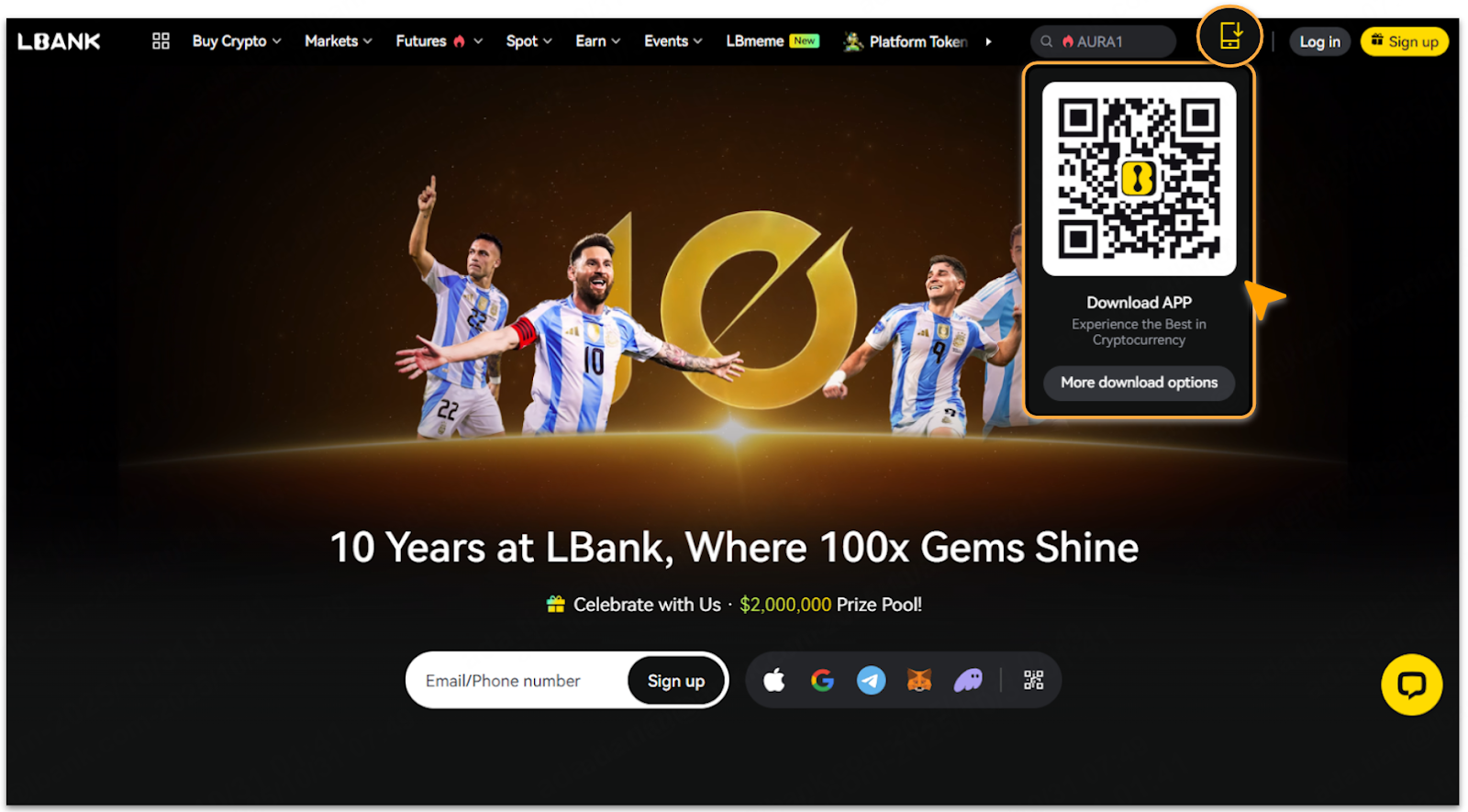
Log in to the LBank Official Website, tap「Mobile Devices」icon, then scan the QR code via your mobile phone.
-
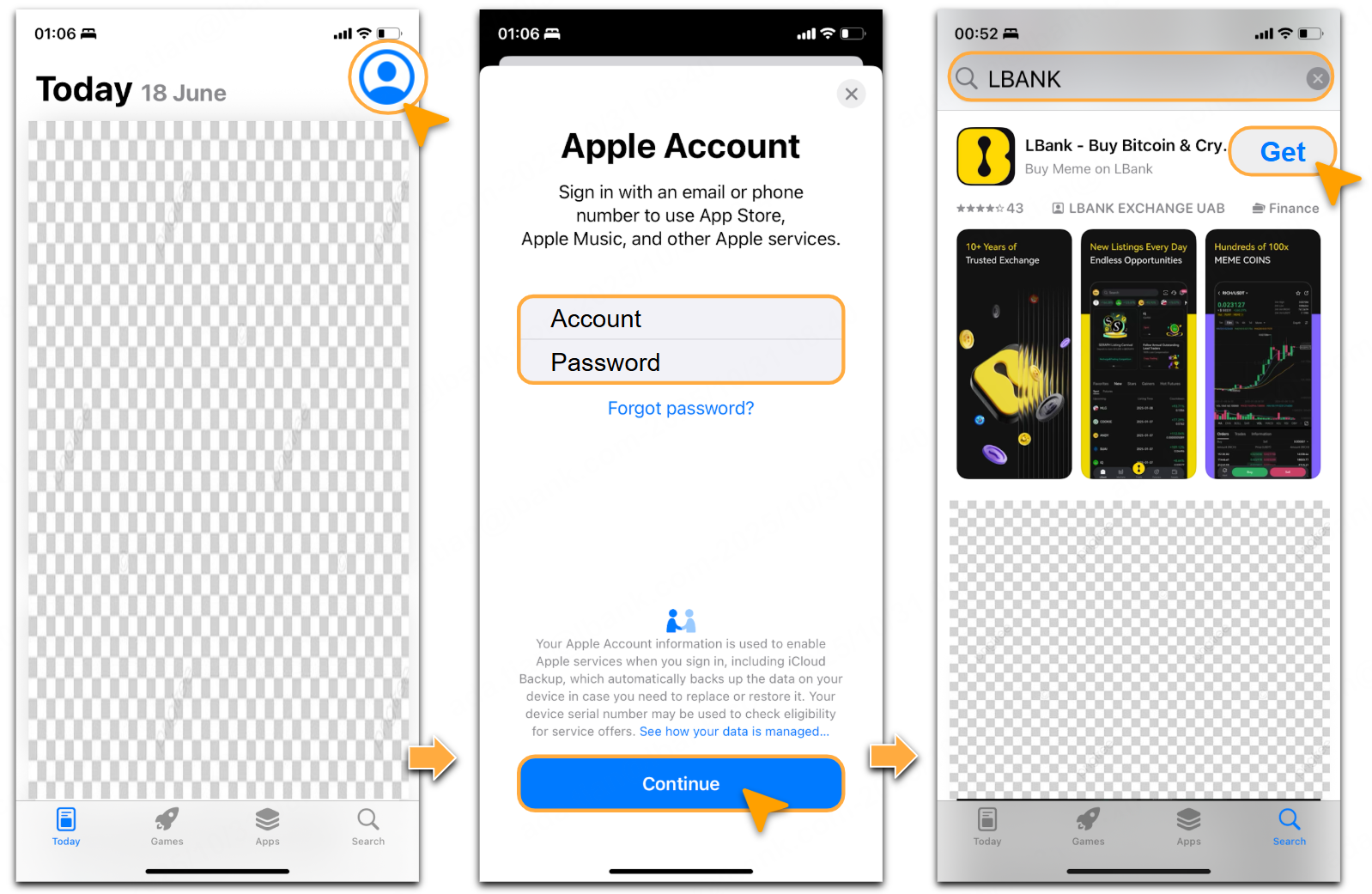
By scanning the QR code, the system will automatically redirect you to App Store.
-
If you are not logged in, tap the「Profile」icon to login your Apple ID, and tap「Continue」. After successfully logging in, locate LBank App again and tap「Get」to complete download.
📌If you don’t have an Apple ID, please visit the Apple Account - Official Support to register.
-
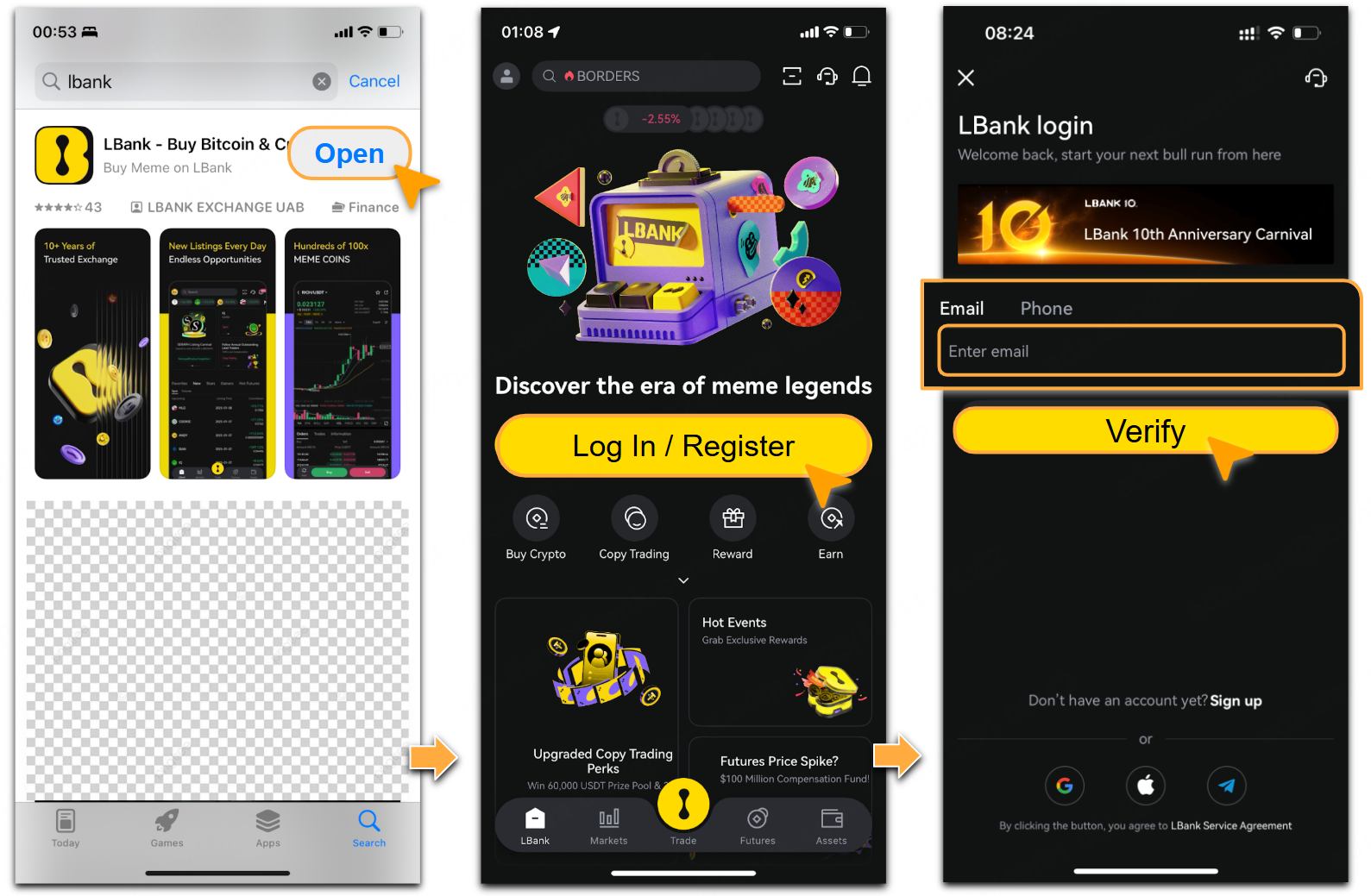
After the installation is complete, tap「Open」to log in or register on the LBank App. You can register your LBank account using either your Email or Phone Number.
📌In some regions, App Store does not currently support downloading the LBank App. See「LBank User Agreement」to check the list of these regions.
TestFlight
-
Go visit TestFlight - Apple with Safari to install. If you already have the TestFlight App, you can skip this step.
-
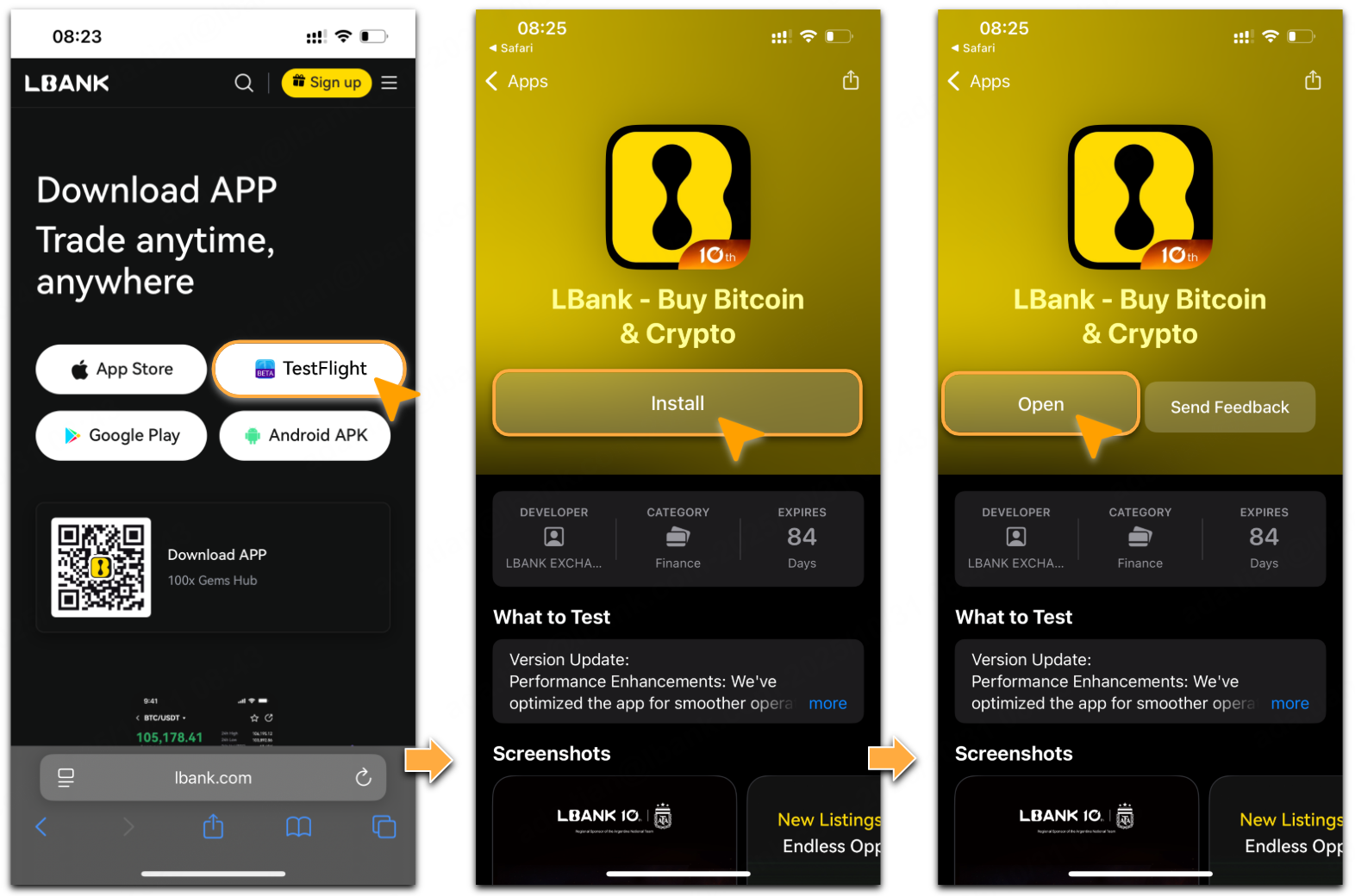
Go visit LBank Download Page with your mobile browser. Tap「TestFlight」to redirect to the LBank App installation page, and then tap「Install」. Tap「Open」when the download is complete. Let’s start your crypto journey with LBank.
📌To update the LBank App via TestFlight, please open the TestFlight app and navigate to LBank App. Tap「Update」if an update is available.
How to Download & Install the LBank App on Android?
The LBank App offers two download options for Android devices: Google Play & Android APK. You may choose either method to download the LBank App.
Google Play
-
Log in to the LBank Official Website, tap「Mobile Devices」icon, then scan the QR code via your mobile phone.
-
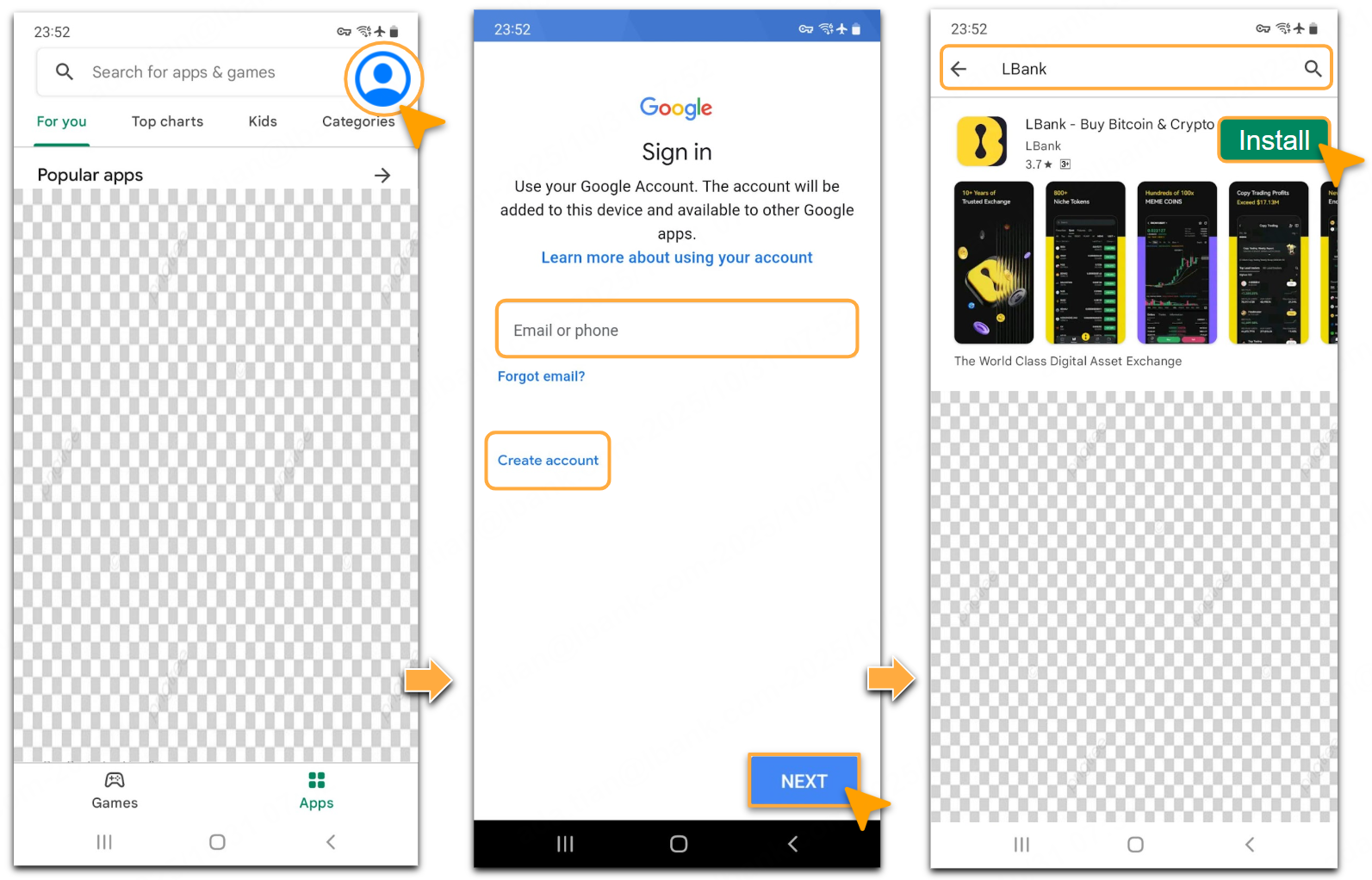
By scanning the QR code, the system will automatically redirect to your Google Play. Tap the「Profile」icon to enter your Google account, and tap「NEXT」. After successfully logging in, tap「Install」.
📌If you don’t have a Google account, tap「Create account」to register.
-
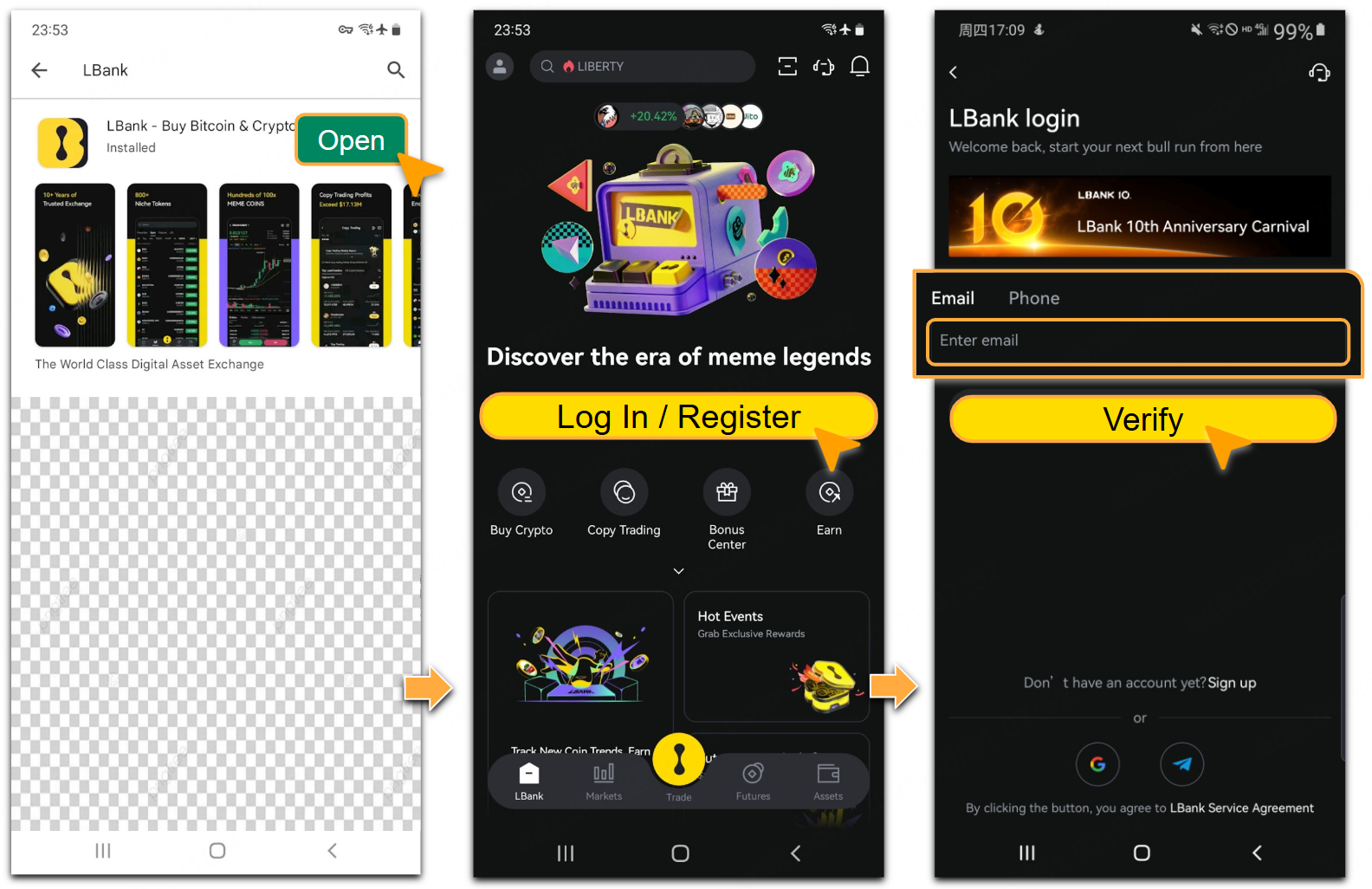
After the installation is complete, tap「Open」to log in or register on the LBank App.
-
You can register your LBank account using either your Email or Phone Number.
📌In some regions, Google Play does not currently support downloading the LBank App. See details on「LBank User Agreement」to check the list of these regions.
Android APK
-
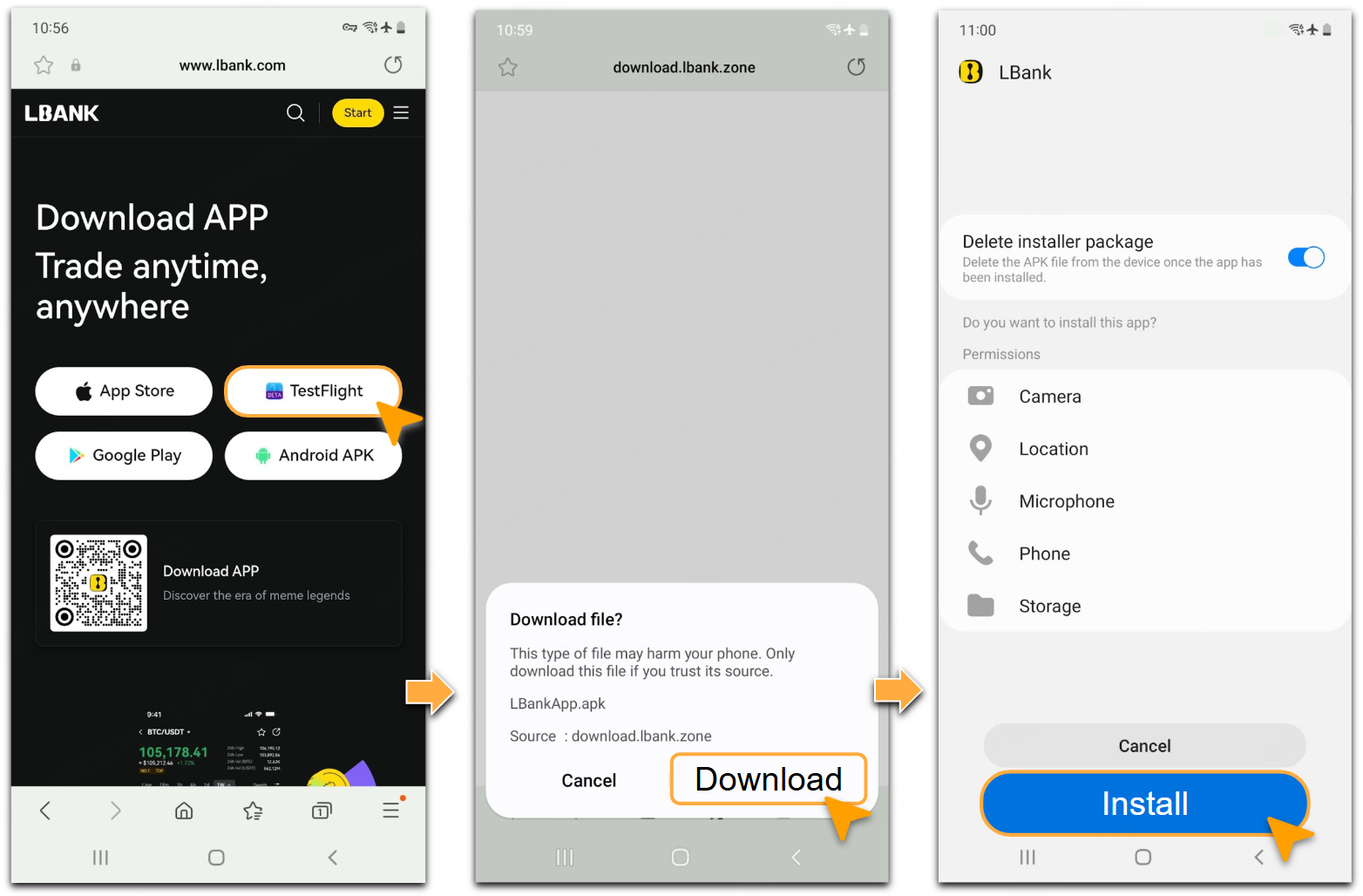
Go visit LBank Download Page with your mobile browser. Tap「Android APK」to redirect to the LBank App installation page, and then tap「Download」. Tap「Install」when the download is complete.
-
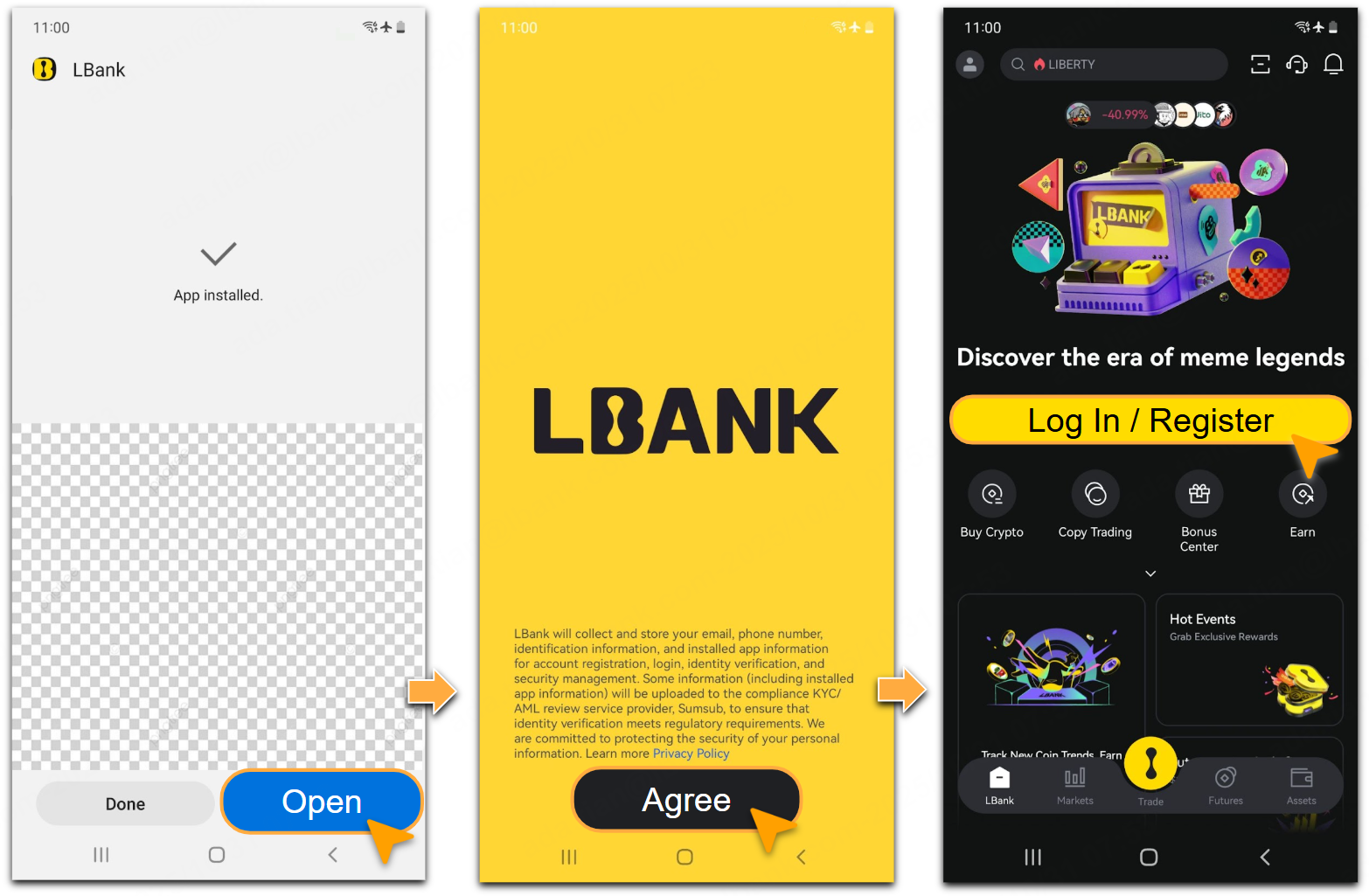
After the installation is complete, tap「Agree」to enter the LBank App. Click「Log In/Register」to start your LBank crypto journey.
Still Need Help?
If you have further questions or cannot resolve the issue, please visit the LBank Official Website or contact our support team at 📮service@lbank.com. We are committed to providing you with a secure and seamless trading experience!